

Running Multiple Apex Performance Accounts: Trade Copier Setup and What to Know
How to use SyncFutures to copy trades across multiple Apex Trader Funding Performance Accounts — what the copier handles automatically, what compliance is still your job, and what to watch for at scale.
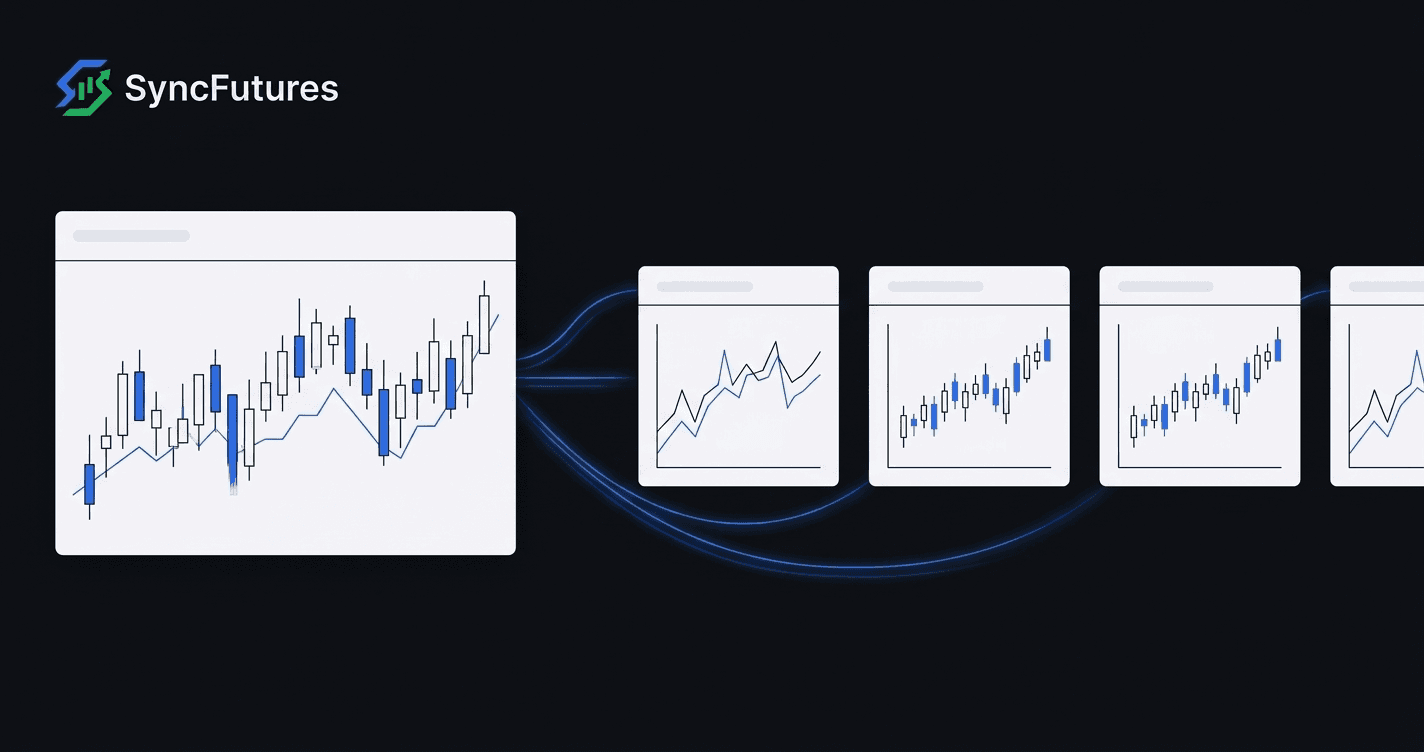
Once you've passed your first Apex Trader Funding evaluation and started running a Performance Account, the natural next step for a lot of traders is adding more. Apex allows traders to hold multiple active PA accounts, and many traders run several simultaneously — either to scale their approach or to have more capital working the same strategy across more accounts.
The problem is that managing multiple PA accounts manually gets tedious fast. Entering the same trade across 3, 5, or 10 accounts every session adds overhead and introduces the possibility of a missed fill or a size error on one of them.
This post covers using SyncFutures specifically for multiple Apex PA accounts — what connects, how copy rules work at scale, and what the tool doesn't handle that you'll still need to manage yourself.
How Apex Performance Accounts connect in SyncFutures
Apex lets traders choose their platform at account purchase: Tradovate or Rithmic (or WealthCharts, which SyncFutures does not support — WealthCharts users would need a different tool). That selection is locked after purchase, so your connection method in SyncFutures depends on which platform you chose.
Tradovate-based Apex accounts
Tradovate connections use OAuth2 — you authorize via Tradovate's login page, no credentials entered directly in SyncFutures. At connection time you'll select an environment: Demo or Live. Apex Performance Accounts run on Tradovate's Demo environment (simulated capital, not a live brokerage account). Select Demo or your accounts won't appear after connecting.
If you have multiple Apex PA accounts on Tradovate, they all come through on a single connection. Each appears as a separate account in SyncFutures and can be assigned as a master or slave independently.
Apex also runs the invitation-only Apex Live Prop Trading Program, which moves select PA traders from the simulated environment into live prop accounts. Moving to Live closes your existing evaluations and PAs. If you've been moved to a Live account, connect using the Live environment instead. Standard PAs are always Demo.
Rithmic-based Apex accounts
Rithmic connections use credentials: your Rithmic username, password, and system. Apex tells traders to select APEX as the system. Your username and password are in your Apex welcome email, or on your Apex dashboard under the Rithmic account setup section. With the wrong system selected, you won't find your Apex accounts.
All your Rithmic-based Apex accounts appear under the same connection. Like Tradovate, each account shows up individually in SyncFutures once authenticated.
Running both Tradovate and Rithmic Apex accounts
If you bought some Apex accounts on Tradovate and others on Rithmic — which can happen if you bought accounts at different times and chose different platforms — you can connect both in SyncFutures. Cross-broker copy trading works the same way: a Tradovate master can copy into Rithmic slaves, or the reverse. SyncFutures treats them as any other connected accounts.
For connection setup steps, see our Apex Trader Funding trade copier setup guide.
Setting up copy rules for multiple PA accounts
Once your accounts are connected, each PA account appears in the Copy Rules screen. The typical setup for multiple PA accounts:
- One master — usually your primary trading account (this can be a PA, an eval account, or a personal brokerage account on a supported broker). You trade on the master.
- Multiple slaves — each PA account you want to receive copies. Each is listed separately and can be toggled on or off within the rule.
Copy rules are contract-specific: you select the exact contract you're trading (e.g. ESZ6, NQZ6), not just the instrument. The rule copies fills for that specific contract only, and one rule feeds every slave account attached to it. When the front month rolls, you update the contract once per rule — more on this below.
You can also set a quantity multiplier for each slave account (0.1x to 100x of the master's fill size). If your PA accounts are all the same size and you're trading the same setup, 1x is usually correct. If you want to scale a particular account up or down relative to the master, adjust that account's multiplier.
Apex's own copy trading rules
Apex permits copy trading, but with conditions that are yours to follow — the copier doesn't check any of them:
- Your own accounts only. Apex allows copying across your own PAs (including accounts under your personal and business name), not to or from other traders' accounts.
- Hedging and direction. Apex restricts hedging between accounts. Check Apex's current hedging and direction rules before running a copy setup.
- Account cap. Apex allows up to 20 active PAs per household, across all platforms. Check Apex's current limit before scaling up.
Apex's rules change over time, so treat their help center as the source of truth.
What the copier handles (and what it doesn't)
This is the part that's worth being explicit about, because other tools in this space sometimes imply features that don't exist.
SyncFutures handles:
- Getting the same fill into every slave account as fast as possible after the master fills
- Letting you monitor realized P&L across all connected accounts in one dashboard
- Notifying you in-app (and via push on the mobile app) if a copy fails, so you catch it during the session rather than at end of day
- One-click flatten across all accounts — closes all positions and cancels resting orders simultaneously
SyncFutures does not handle:
- Apex's account rules — trailing drawdown, daily loss limits, payout consistency and qualifying-day requirements. These apply per account and are enforced by Apex. The copier gets the same trades into every account; whether those trades result in a payout-eligible outcome is between you and Apex.
- Automatic compliance checking — if the master trade would put a slave account in breach of a drawdown rule, SyncFutures still copies it. There's no warning or block. Rule tracking is your job.
- Account-level risk limits. You can set optional daily and weekly loss goals on the Journal page, but those are informational journaling goals, not enforcement.
If you're running 10 PA accounts, you're responsible for the state of each one individually. The copier doesn't aggregate risk across accounts or interface with Apex's risk system.
For more on why we approach loss limits this way, see why SyncFutures doesn't enforce prop-firm drawdown rules.
Rollover: the thing that bites at scale
Copy rules in SyncFutures are pinned to a specific contract. When the front month rolls, any rule pinned to the old contract stops copying. The master fills on the new contract; nothing lands on the slaves.
Because one rule feeds all of its slave accounts, a single master-to-all-slaves setup means updating one rule at rollover. If you have a more complex setup — multiple masters for different account groups — you have more rules to update.
ES and NQ just rolled from September to December: trading volume moved to the December contracts around September 10–11, and the September contracts expire September 18. If your copy rules still reference ESU6 or NQU6 (or MESU6 / MNQU6), update them to ESZ6 / NQZ6 (MESZ6 / MNQZ6) now.
The fix takes about 30 seconds per rule on web or mobile. The failure mode is silent — master fills, you don't notice the slaves didn't, and you find out at end of session when reviewing the journal.
Monitoring multiple PA accounts
With several accounts connected, the SyncFutures dashboard shows realized P&L across all of them in one view — no switching between broker platforms to add up your numbers.
Copy-failure notifications mean you'll know quickly if one account didn't receive a copy, not when you check the journal hours later.
The trading journal pulls in closed trades from all connected accounts — automatically after the market closes each day, or on demand with the Sync Trades button. If you're running the same strategy across multiple PAs, the per-account breakdown lets you see whether execution is consistent across accounts or whether one is lagging — useful data when you're trying to understand whether a performance gap is strategy or execution.
FAQ
Can I use an eval account as the master?
Yes — any connected account can be the master. A common setup is to trade on an eval account (or a personal brokerage account on a supported broker) and copy into PA accounts as slaves. Apex's own-accounts and hedging rules still apply across all of them.
What happens if one slave account disconnects?
SyncFutures skips that account and notifies you that it didn't receive the trade. The other slave accounts keep copying normally. Once an account is skipped, it's out of sync with the master, so check its position before reconnecting.
Do copies count toward Apex's qualifying trading days?
Each slave account receives a real fill — it is trading. Whether those fills satisfy Apex's per-account qualifying-day requirements is a question for Apex's rules, not something SyncFutures can answer. Check Apex's current payout documentation.
Can I copy from one PA to another PA?
Yes — any connected account can be either master or slave. You could trade directly on one PA and copy to others, though the more typical setup is to use a separate master account so your trading decisions don't depend on which PA you happen to be logged into.
Getting started
SyncFutures is $39/month on the Starter plan (3 broker connections) up to $129/month for the Ultimate plan (unlimited connections, up to 200 accounts). All plans include the same features — the difference is how many broker connections you can add.
Plans count connections, not accounts. All the Apex accounts under one Tradovate login share a single connection, and the same goes for Rithmic — so even a mixed Tradovate and Rithmic Apex setup fits within Starter. Professional (5 connections, $89/month) or Ultimate make sense when you're also connecting accounts from other prop firms or brokers.
There's a 7-day free trial. Connect your actual Apex accounts, run a few sessions, and see how the copies land before committing. Start at syncfutures.com/pricing.